
Many people have asked us questions like: What is Abaqus free version for students? Which abaqus edition suits for their needs? Can they run simulations using Abaqus student edition (Abaqus learning edition)? And how can download abaqus and install it? Have you ever wondered the same?
We understand that purchasing tokens for Abaqus can be quite costly. But did you know that in many cases, you can run your simulations completely free using the Abaqus student version (Learning Edition)? And for many types of simulations, it’s possible to complete your work using fewer tokens — significantly reducing your expenses.
In this blog, we explore the Abaqus student, its features and limitations, and we provide a direct abaqus download link. We also walk you through the installation process step by step. Furthermore, we explain how to estimate the required number of tokens based on the number of users and CPU cores for Abaqus commercial edition.
To make things even easier, we’ve provided two online tools in this blog:
- In the first tool, you can input the number of CPU cores, concurrent users, and Abaqus/CAE seats. It will automatically calculate how many tokens you need to purchase.
- In the second tool, simply enter the number of tokens you have (or plan to buy), and it will show you how many CPU cores you can use in your analysis.
Introduction of Abaqus software editions | Abaqus download
Abaqus is a powerful engineering simulation software suite based on the finite element method that can solve problems ranging from simple linear analyses to the most difficult nonlinear simulations. Abaqus has a large library of elements that can model almost any geometry. It also has a long list of material models that can simulate the behavior of most common engineering materials; for example, metals, rubber, polymers, composites, reinforced concrete, crushable and resilient foams, and geotechnical materials like soils and rock. Abaqus is a general-purpose simulation tool that can be used to study problems other than structural (stress/displacement). It can simulate heat transfer, mass diffusion, thermal management of electrical components (coupled thermal-electrical analyses), acoustics, soil mechanics (coupled pore fluid-stress analyses), and piezoelectric analysis, among other things.
Today, engineering teams frequently perform product simulations using niche simulation tools from various vendors to simulate various design attributes. Using multiple software vendors creates inefficiencies and increases costs. SIMULIA provides a scalable suite of unified analysis products that enable all users, regardless of simulation expertise or domain focus, to collaborate and share simulation data and approved methods without compromising information fidelity.
There are two types of Abaqus editions: Abaqus Student Edition (SE) and Abaqus commercial edition.
- Abaqus Student Edition
Anyone interested in learning more about Abaqus can do so for free by downloading the ABAQUS Student Edition (Abaqus learning edition). Perform finite element analysis operations on a personal computer using the educational and research versions of the suite, but it has size restrictions, such as 1000/10,000 element nodes, and is governed by a personal use license. The complete documentation collection in HTML format makes this the perfect Abaqus learning tool.
We’ve got you covered with all the information you need about the Abaqus student version in Section 2. Stick around for the full scoop!
- Abaqus commercial edition
The Abaqus commercial edition can offer a strong and complete solution for common and complex engineering issues. This software is not accessible to the general public because it is currently using an evaluation demo license with a single seat. It will be necessary to purchase an academic license if your group wants to use the commercial Abaqus edition. (which incidentally appears very reasonably priced considering the capabilities of this package). [learn_press_recent_courses]
Abaqus Student Edition | Abaqus for student
Abaqus Student Edition, Abaqus Learning Edition, Abaqus Student Version, and Abaqus Free Version are all names that users call this particular version. Therefore, if you hear any of these terms, they all refer to the same edition.
Dassault Systèmes offers a free version of Abaqus for students. This version is specifically designed to cater to the needs of students.
The ABAQUS Student Edition is a personal finite element analysis tool for dealing with problems of limited size (1000 nodes for ABAQUS/Standard and ABAQUS/Explicit, and 10,000 nodes for ABAQUS/CFD). It is subject to a personal use license, can be installed on your laptop and home computer, and can be used permanently. The Abaqus learning edition has the complete online ABAQUS documentation set and is compatible with Windows XP/Vista/Windows 7, 8, 10, 11 and also Linux. The ABAQUS Student Edition is fully compatible with the ABAQUS Teaching and ABAQUS Research Editions, making it an ideal complement to your campus ABAQUS installations.
ABAQUS/Standard, ABAQUS/Explicit, ABAQUS/CFD, and ABAQUS/CAE are all included in the ABAQUS Student Edition. Model databases are interoperable with other academically licensed ABAQUS versions, allowing students to perform increasingly sophisticated analyses on models created in Abaqus Student Edition. The complete HTML documentation has made Abaqus for students version a comprehensive, searchable resource for finding detailed information.
The maximum model size for structural analysis and post-processing is 1000 nodes for personal education and 10000 nodes for fluid analysis. There is no access to features that require compilers (user subroutines, ABAQUS Make, C ODB API), parallel execution, or add-on products. ABAQUS/CAE does not support replay or journal files.
As we mentioned before, Maybe you have seen the learning edition in various sources; this is the same Student Edition but with a different name. Anyone interested in learning ABAQUS can download the ABAQUS Learning Edition for free. The ABAQUS Learning Edition is only available for Windows and supports structural models with up to 1000 nodes. ABAQUS is an expensive piece of software. If you work at an academic institution, your department may already have a subscription to the Research edition. Engineering Technical Services currently offers Abaqus Research Edition on a Pay-as-you-Go basis. The Abaqus/Standard, Abaqus/Explicit, and Abaqus/CAE are available with the Abaqus Research Edition. Due to the inclusion of both Abaqus/Standard and Abaqus/Explicit, users can select the best analysis technique for their simulation type or even combine the two techniques. in the research edition, Modeling advanced research materials, complex surface and contact behaviours, and other user-specific features are made easier with user-defined subroutines.
You can download the student version of Abaqus for free from the link below:
https://edu.3ds.com/en/software/abaqus-learning-edition
If you work for a company, they will need to purchase licenses for the Commercial edition if they do not already have any. The good news is that if all you want to do is learn how to use the software, you can do so for free by downloading ABAQUS Student Edition (SE) or Abaqus learning edition. Abaqus download
Although ABAQUS SE was previously limited to students, it is now available for download by anyone for educational purposes. The download also includes the ABAQUS documentation. In the following, there is information about the paid and commercial versions of Abaqus, the minimum system requirements for installing Abaqus, relevant links to download the software, and the steps to install the SE version of Abaqus. Take a break and join us again.
Suppose you’ve downloaded the Abaqus learning edition and are ready to learn Abaqus; But, do you know where to start? I recommend searching on YouTube or checking these tutorial packages available on CAE ASSISTANT.

Abaqus commercial edition
As mentioned in the introduction, this version of Abaqus requires payment, and you have to pay different prices according to different analyses. It provides a powerful and comprehensive solution for routine and complex engineering problems, as well as a good collection of Multiphysics and structural-pore capabilities capturing simulation software. If you work for a company, you will need to purchase licenses for the Commercial edition. You can contact Dassault Systems directly if your company has earnings of more than $2 billion or more than 5,000 employees. Otherwise, a local reseller can help. Abaqus download
How much does Abaqus cost?
Dassault Systèmes, Abaqus’ parent company, offers a number of promotional pricing packages throughout the year, but here is an overview of the starting prices for different packages (as of April 2022):
- A quarterly lease of ABAQUS begins at around $7,000
- A year’s lease on ABAQUS begins at around $19,000
- The cost of purchasing ABAQUS starts around 31,000,withannualmaintenance(updatesandsupport)startingat6,000 per year.
What are Abaqus tokens?
One of FEA products, Abaqus, is frequently used for simulations in CAE (computer-aided engineering). Dassault purchased Abaqus in 2005, and there are two license managers available: Dassault’s own DSLS product and Flexera’s Flexnet, which is made to manage token licenses. Due to the nature of FEA software, which frequently runs on multiple processors with no or minimal user intervention, the token system performs impressively for Abaqus. The following factors determine how many tokens are needed for a job:
- number of simultaneous users
- the required number of parallel processors (CPUs or GPUs)
- based on user count, at least 1 token for the CAE pre-processor
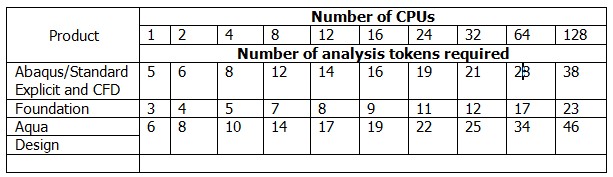
Abaqus is licensed through tokens. Tokens provide access to both the Standard and Explicit solvers. Other than the bounds of your computer hardware, these solvers have no element or node limits. Multiple CPUs or CPU-cores generally improve computational throughput for large and time-consuming FEA models. A minimum of 5 analysis tokens are required to run a model on a single CPU core. In Tables 1 and 2 you can see an illustration of token costing for various Abaqus products.
Table 1: The number of tokens required according to the number of analyses
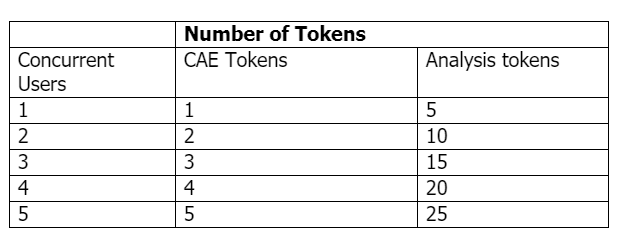
Table 2: The number of tokens required according to the number of CPUs
Using the online tool below, you can enter the number of CPUs, active Abaqus/CAE seats, and concurrent users, and it will automatically display the number of tokens required.
If you need to know how many CPU cores you can use for parallel processing based on the number of tokens you have, simply enter the number of tokens, active Abaqus seats, and users in the tool below. The tool will automatically calculate and display the number of CPU cores available to you.
Minimum requirements to install Abaqus
Before you begin the installation, make sure your system meets the following requirements:
- Windows 7/8/8.1/10 must be your operating system. You cannot run ABAQUS directly on Mac OS and must have Windows administrator privileges to complete the installation. However, ABAQUS is unavailable on computers running Mac OSX, but you can gain access to the software via remote access.
- You must have a 64-bit operating system (32-bit will not work). If you’re still not sure, open a command prompt window and type “systeminfo” into it. You have a 32-bit operating system if the “System type” field says “X86-based PC.” If it says “X64-based PC,” you have a 64-bit operating system. It should say something along the lines of a 64-bit operating system.
- The installation will require 8.5 GB of disk space.
The Abaqus Student Edition installation consists of 3 basic sections.
a) Abaqus HTML Documentation Installation (5.8 GB disk space)
b) Abaqus Product Installation (2.7 GB disk space)
c) Abaqus Installation Verification
- Internet Explorer 11.0.11 or higher is required. If you allow Windows to install updates, you probably already have this. The installer requires it.
- You must have administrator access to the machine.
Abaqus Student edition download: Getting ABAQUS Student version?! Abaqus download
Follow these steps to download ABAQUS Student Edition:
You can download the Abaqus student version for free from the link below:
https://edu.3ds.com/en/software/abaqus-learning-edition
Then, on the page, click the free download button (see figure 1).

Figure 1: The page containing the download link of ABAQUS SE
After that, you must create an account. However, sign in if you already have an account. Accept the terms of the agreement and click the “Download Now” button.(ABAQUS Student Edition download start)
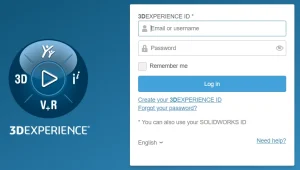
Figure 2: Create an account at 3ds.com
Steps of installing ABAQUS Student Edition
You can easily obtain the Abaqus student edition download by following the provided instructions for a seamless installation process. Abaqus download
Follow the steps highlighted below:
- Go to the Abaqus Simulia learning edition page and click “Free Download.”
- Register or sign in if you already have an account.
- Accept the Terms of Service Agreement and click “Download Now.” You’ll then be directed to the Download Center.
- In the Download Center, select the “Download & Instructions” dropdown menu and download the ABAQUS version you require. Extract the downloaded “.zip” file and enter the folder. If you are installing ABAQUS SE 2019, If you could not easily go through the installation steps from the text, we showed you the installation steps of Abaqus in a video in section 11 of this post.
- Run “setup.exe” to complete the installation. You can use the default ABAQUS directory settings or specify a different folder.
- Once the installation is complete, you can begin using ABAQUS.
Below are step-by-step instructions for each section. The pictures below come from a Windows 10 installation of SIMULIA Abaqus Student Edition 2017.
Step1
Extract the downloaded media .zip file using 7-Zip into a folder/directory of your choice.
Note: This path must be less than 60 characters; for example C:\downloads
This download location differs from the folder/directory where the products will be installed (and may optionally be deleted once the installation is complete).
It is recommended that you use the free 7-Zip utility (V4.57 or higher), which handles the zip format. If you do not have 7-Zip, download the latest version at https://7-zip.org/.
Step2
Run the following executable from the extracted media directory to verify the integrity of the extracted media:
c:\downloads\SIMULIA_Abaqus_Student.Windows64\1\0Data\intel_a\DSYInsMediaCheck.exe
Step3
Double-click the setup.exe executable in the extracted media to begin the installation process:
c:\downloads\SIMULIA_Abaqus_Student.Windows64\1\setup.exe
Step4
Read and accept the terms of the license agreement to continue. Click Next.
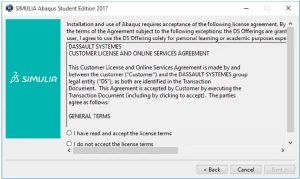
Figure 3: Step 4 for installing Abaqus SE (accept the terms of the license agreement)
Step5
You will be asked to provide an installation directory.
NOTE: This location is different from the extracted media folder.
Choose your installation directory and click Next.
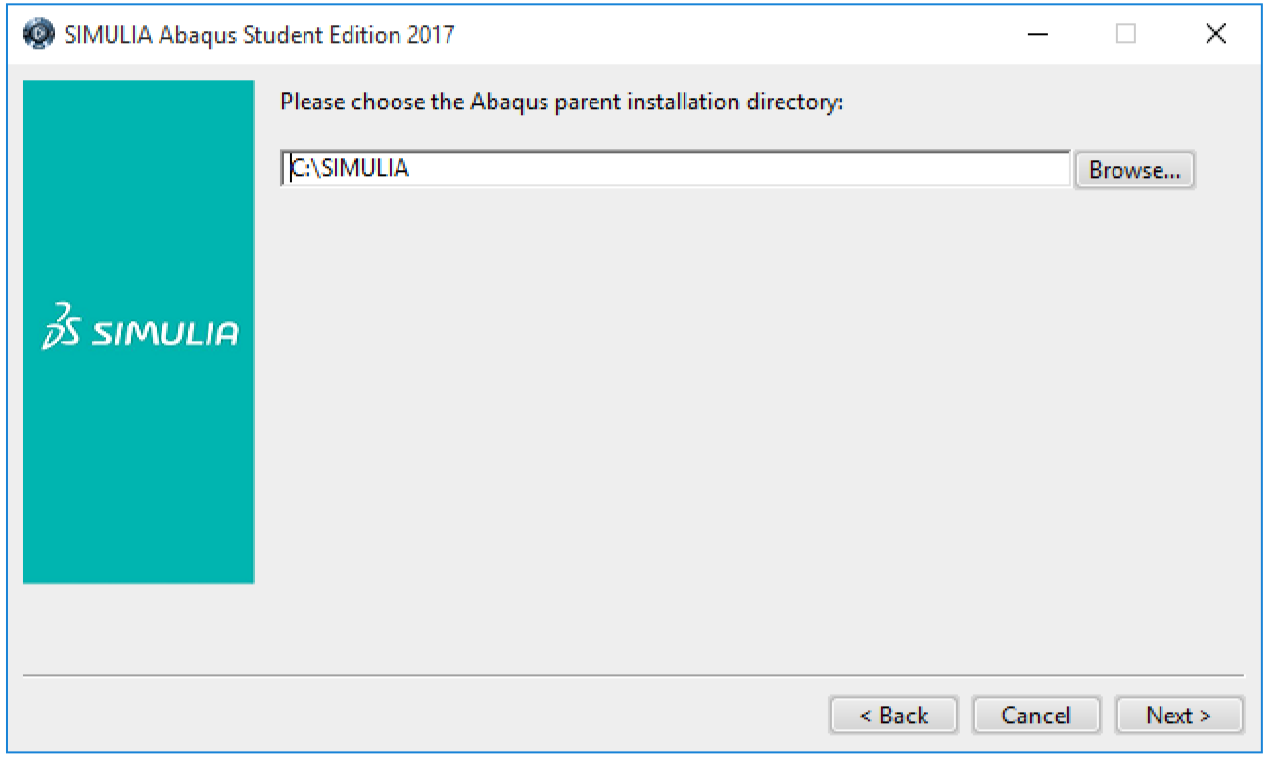
Figure 4: Choosing installation directory
Step6
Choose the location for your Abaqus job files and click Next.
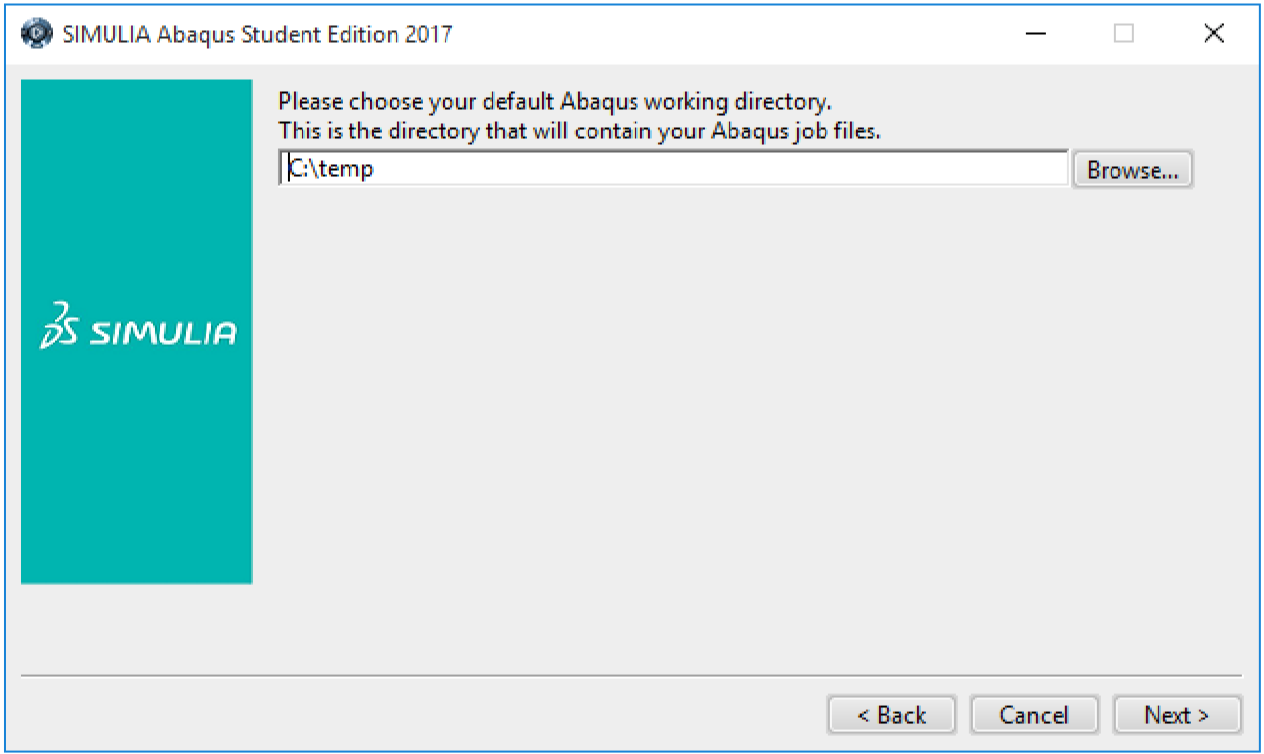
Figure 5: Choosing the default Abaqus working directory
Step7
Review the information in the pre-installation summary. Click Install when you are ready to proceed.
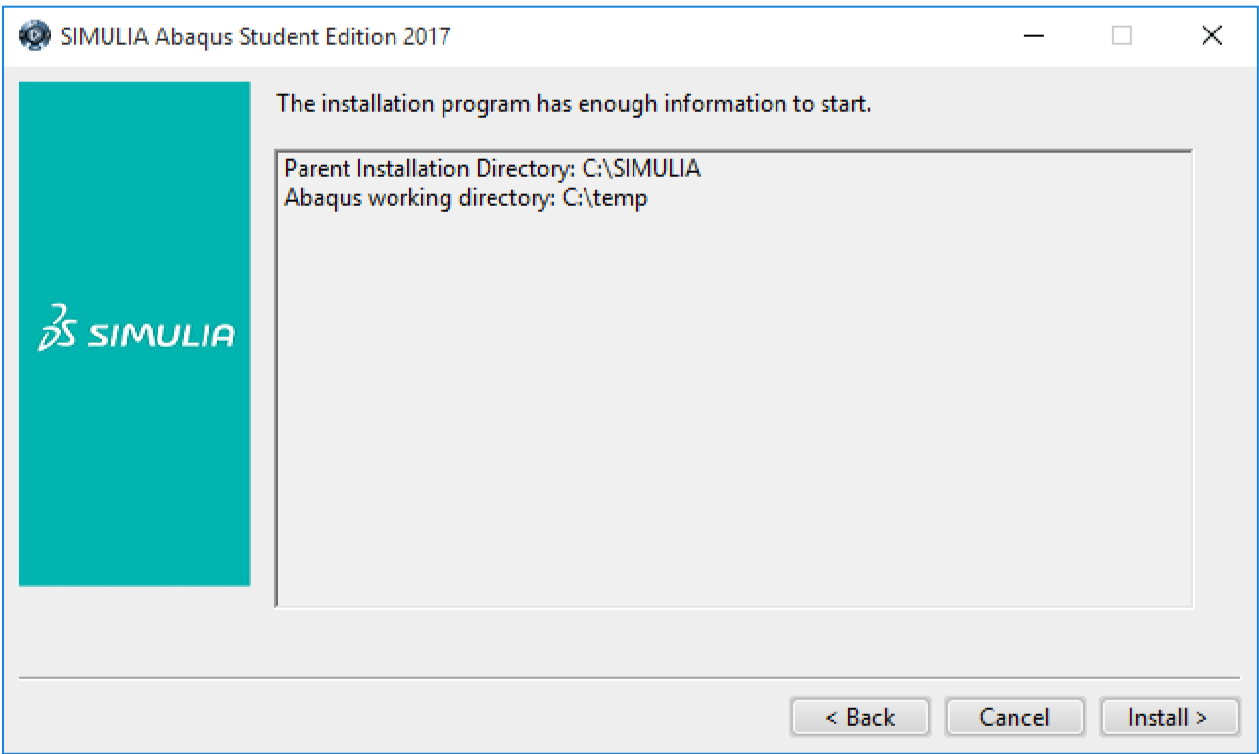



 English
  Korean
  Chinese
One Response
Hello, thank you for preparing this article, I really needed this installation guide, is it possible to install the commercial version in the same way?