
Have you encountered the frustrating “Abaqus Error: Problem during linking” message? You have the code ready. You understand the physics behind it. However, the software refuses to communicate with the compiler. Many users spend hours testing different versions of Visual Studio and Intel Fortran. Despite their efforts, they never see that crucial “PASS” in the verification log. If this sounds familiar, you’re in the right place.
By reading this blog, you will gain valuable insights into the Abaqus Fortran Linking process. With this knowledge, you can successfully link Abaqus with Fortran to utilize user subroutines. So, keep reading this blog to resolve your linking Abaqus and Fortran issues.
Moreover, don’t miss the key point at the end of this post. Even if your linking process succeeds, you might still face compilation problems. These issues could cost you days of debugging. However, knowing this one tip will prevent that frustration entirely.
What is Abaqus-Fortran Linking? A Common Issue!!
In general, Abaqus Fortran linking means enabling the software to run user subroutines. These subroutines are written in the Fortran language. To execute such code, we require a Fortran compiler. The compiler processes the code step by step. At each step, results are sent back to Abaqus. This two-way communication process is what we call “linking Abaqus and Fortran.”
Nearly everyone faces this situation eventually. You have an Abaqus subroutine code ready—either written by yourself or found elsewhere. Then, when you try to use it in an analysis, Abaqus displays an error. Specifically, it states that Abaqus is not linked with Fortran. At first, many users don’t understand what “linking Abaqus and Fortran” actually means. On the other hand, others have tried linking multiple times without success.
In fact, some users find themselves in a frustrating cycle. They uninstall and reinstall Abaqus and the compilers repeatedly. They blindly test different versions. Yet, they still end up with the same disappointing results.
This Abaqus Fortran Linking problem is especially common with recent software updates. Many users want to download the correct versions of Visual Studio and the Fortran Compiler. However, they face two main obstacles. First, they don’t know which versions are compatible for Abaqus Fortran Linking. Second, they simply can’t access the necessary files.
Additionally, users sometimes configure the Abaqus Fortran Linking settings incorrectly. Later, they can’t remember which files they modified. As a result, they’re forced to reinstall their entire Windows OS just to link Abaqus and Fortran properly.
To establish Abaqus Fortran Linking, you need three specific software packages:
- Abaqus – The simulation software itself
- Microsoft Visual Studio – Development environment
- Intel Fortran Compiler – Code compilation tool
The following sections explain how to download and install this software for Abaqus Fortran Linking. However, it’s important to note something crucial. The Abaqus Fortran Linking isn’t established just by installing these programs. Instead, you must provide a series of paths from Visual Studio and the Fortran compiler to Abaqus.

Does the Linking Process Differ for Different Versions of Abaqus?
You might be wondering whether the linking process differs depending on your Abaqus version. The answer is a definite yes.
Abaqus 2021 and higher versions require a specific standard procedure. This procedure differs significantly from older releases. Therefore, we’ve divided this guide into two main sections:
- Part 1: Linking Fortran and Abaqus for versions 2021 and newer
- Part 2: Linking methods for Abaqus versions prior to 2021
We’ll begin by explaining how to link the new versions first. After all, that’s what most users are looking for. Then, we’ll move on to the procedure for older releases.
Common Abaqus-Fortran Linking Errors
Many users encounter frustration when trying to compile user subroutines. Often, they face a series of cryptic error messages for Abaqus Fortran Linking. If you’re struggling with any of the issues listed below, you’re in the right place. This guide specifically addresses these common conflicts:
- Compiler not found”
- ERROR: Visual Studio is not found in the system
- Abaqus Error: Include file “aba_param.inc” required for compilation is not found. This may indicate a problem with the Abaqus installation.
- Problem during compilation – ifort.exe not found in PATH
- ‘ifort’ is not recognized as an internal or external command, operable program or batch file.
- Ifortvars.bat’ is not recognized as an internal or external command, operable program or batch file
- vars.bat’ is not recognized as an internal or external command, operable program, or batch file
- Abaqus/Explicit single precision user subroutine’ Failed.
- ERROR : Abaqus/Standard with user subroutines verification
By following the steps in this article, you’ll eliminate these errors. Consequently, you’ll successfully link your software.
How to Link Abaqus with Fortran for Abaqus 2021 and Later?
If you’re using newer versions of Abaqus (2021, 2022, 2023, or 2024), we have great news. Linking Abaqus and Fortran is much more accessible now compared to older versions.
All the required software for Abaqus Fortran Linking has been released for free on the official developer’s website. Therefore, you can download and install everything without major issues. Moreover, the linking process itself isn’t too complicated. So let’s dive in and see how it’s done.
Required Software and How to Access Them
Assuming you have already installed Abaqus (versions 2021–2024), the next step is to establish the link with Fortran.
Visual Studio 2022
To accomplish the link, you specifically need Visual Studio 2022. Until recently, you could download the online installer for the Community edition for free directly from the official website at the following address:
https://visualstudio.microsoft.com/thank-you-downloading-visual-studio/
However, the link has recently been updated to offer version 2026. As a result, you can no longer download the 2022 version from that page for Abaqus Fortran Linking. More importantly, our tests have shown that linking Abaqus and Fortran fails when using version 2026.
So, what is the solution for Abaqus Fortran Linking? We have made it easy for you. You can access the specific installer for Visual Studio 2022 via the link below provided by our website. This ensures you can still download and install the compatible version you need.
In addition to this, for those who might find the Visual Studio installation challenging—or aren’t sure exactly which modules to select—we have explained the entire process step-by-step on this page. You can access this comprehensive guide in both video and PDF formats.
Inte OneAPI Base Toolkit
The second software you need to install is the Intel® oneAPI Base Toolkit, which was previously available via the link below:
Get the Intel® oneAPI Base Toolkit
Unfortunately, the latest version now hosted there is incompatible with Abaqus and causes Abaqus Fortran Linking errors. But don’t worry—we have you covered. Additionally, during our recent testing, we faced a specific error “Service Currently Unavailable. Please Try Again Later”. So, we decided to fix this for you.
To address these issues, we have made the installation file for version 2022 available directly on our website. You can download the installation files for the compatible 2022 version from our website using the link below.
Download Intel® oneAPI Base Toolkit 2022
In addition, we have provided a complete A-to-Z guide on how to install this software to ensure you get it right.
Inte OneAPI HPC Toolkit
The last software you need is the Intel® oneAPI HPC Toolkit. This package acts as the Intel compiler for compiling Fortran code.
Until a while ago, it could be downloaded from this link:
However, the new version faces similar problems, including failure to link with Abaqus, and sometimes the download link results in the error shown below:
“Service Currently Unavailable. Please Try Again Later”
Due to the limitations on the Intel website, we have handled this for you by uploading the installation files ourselves. You can now download and install them to ensure a successful link. More details are provided in the following link.
Modifying the Installed Batch Files to Link Fortran and Abaqus
In the next step, you need to define specific Batch files related to the Fortran compiler for Abaqus. These files include:
- vars.bat
- vcvars64.bat
This is exactly where most users get stuck and fail to complete the Abaqus Fortran Linking setup.
But the good news is that we have solved this for you. Through the link below, you can access a complete tutorial for this process—along with a ready-to-use sample file—so you never have to worry about this issue again.
Link Verification
But at this stage, you might be asking: ‘How can I be sure the Abaqus Fortran Linking was successful?’
Don’t worry, it is very simple. You can verify the connection using two basic commands for the Standard and Explicit solvers, which we have explained below.
To verify the link with the Abaqus Standard solver, press the Windows Key + R to open the Run window. Type cmd and press Enter to open the Command Prompt. Then, type the command “abaqus verify -user_std” and wait for it to run. If you see a PASS message like the one in the image below, the Abaqus Fortran Linking process was successful.

Figure 1: Abaqus Fortran Linking for Standard Solver
If you also wish to verify the Abaqus Fortran Linking for the Abaqus Explicit solver, you can simply repeat the same process. Open the Command Prompt (CMD) again and use the following command this time:
“verify -user_exp”
If the Abaqus Fortran Linking is established correctly, you will see a result similar to the image below.

Figure 2: Abaqus Fortran Linking for Explicit solver
Below, we have discussed Abaqus Fortran Linking for older versions. Of course, the base version for our explanation was Abaqus 2017, but you can use this process for linking other old versions of Abaqus by taking into account the correct versions of the required software.
Linking Abaqus and Fortran for Older Versions
As you can see in the article Compatible versions of Intel Fortran and Visual Studio for Abaqus, this is the compatibility list for Abaqus 2017:
Intel Parallel Studio XE 2013 or above
Visual Studio 2010 or above
We will use:
1. Abaqus 2017
Remember that user subroutines are not available for the Student version.
2. Microsoft Visual Studio Ultimate 2013 with Update 5
It is free software. You can download it here:
https://visualstudio.microsoft.com/vs/older-downloads
On that page, you can also find older versions (for example, Visual Studio 2013 which is needed here):
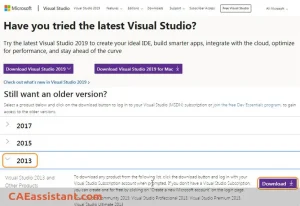
3. Intel Parallel Studio XE 2017 Update 2 Cluster Edition
You can subscribe to download the Student version of Fortran free from here:
https://registrationcenter.intel.com/en/forms/?productid=2871
(You need to have an academic email to receive a free student license from Intel).
Read More: Abaqus tutorial videos, Abaqus course & training
Step 1: Installing Visual Studio
Just follow the procedure. There is no need to change any default. If you want, you can change the installation drive (considering the second note):
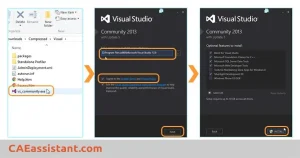
Step 2: Installing Intel Parallel Studio
Look at the image below and follow the installation procedure:
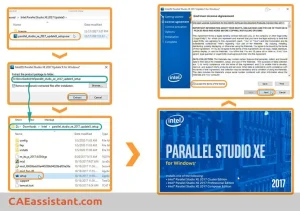
In the next window, the installation wizard may report some issues:
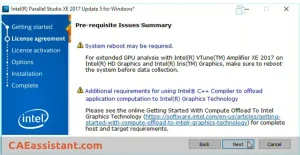
Issues like these are OK. Press Next.
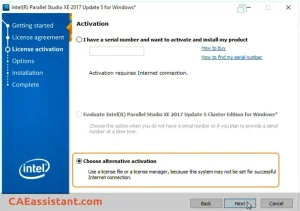
In the License Activation step, select Choose alternative activation:
[rml_read_more]
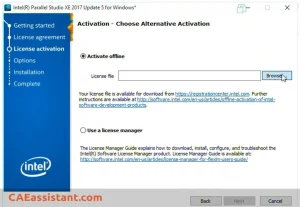
Then Browse the License file (with .lic suffix) provided by Intel. You have received this file via email if you requested an academic license.
Then follow the procedure. There is no need to change any default. If you want, you can change the installation drive (considering Note 1).
Then you will see this window:
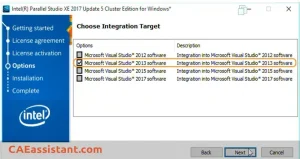
Select Visual Studio 2013 as Integration Target. Press Next.
Finally, after pressing Install, you should be patient for some minutes.
Step 3: Adding some Paths to System Variables of Windows
In the Control Panel of your Windows, find the “System” item:
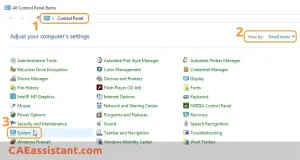
Then follow the instructions below to find the “path”. Select “Edit”.
You should add these two addresses to the existing Variable Value:
C:\Program Files (x86)\Microsoft Visual Studio 12.0\VC\bin\amd64
C:\Program Files (x86)\IntelSWTools\compilers_and_libraries_2017.2.187\windows\bin
Just click at the end of the existing Value, put a semicolon (;), type (or paste) the first address, put a semicolon again, and type the second address:
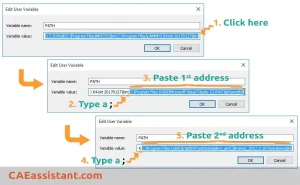
If you have changed the default installation drive (C:) you should use that drive letter instead of C: in the above-mentioned addresses.
Read More: Fracture & Damage Mechanics
Step 4: Setting Abaqus to call Visual Studio and Intel Fortran
Find the default directory of Abaqus shortcuts. Just type “Abaqus CAE” in the Search box of Windows 10 (lower left corner near Start). Then right-click on the program name. Select Open file location.
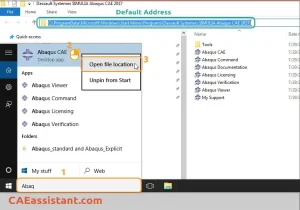
In addition, you can follow this address on your PC as the default folder for Abaqus 2017 shortcuts:
C:\ProgramData\Microsoft\Windows\Start Menu\Programs\Dassault Systemes \SIMULIA\Abaqus CAE 2017
Also, You can Copy & Paste this into your Address bar.
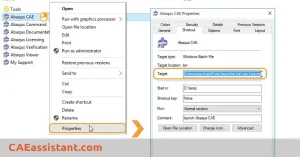
Now, right-click on “Abaqus CAE” and select Properties:
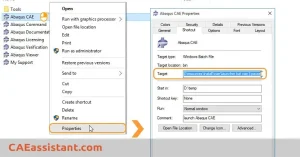
Then, in Target, come to the beginning of the present expression (press the Home key on your keyboard) and add this expression:
“C:\Program Files(x86)\IntelSWTools\compilers_and_libraries_2017.2.187\windows\bin\ifortvars.bat” intel64 vs2013 &
(Just Copy and Paste. Do not forget the final Space after &)
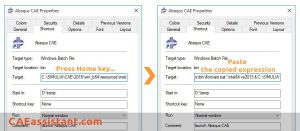
If you have installed Intel Fortran on another drive, replace C: in the above expression with the appropriate drive letter.
Do exactly what you have done for Abaqus/CAE with Abaqus Command and Abaqus Verification in the Abaqus shortcuts folder.
Step 5: Check Your Subroutine Interface
Run Abaqus CAE (the shortcut in Desktop or from the Start menu). If you see this window, you can get happy 🙂. Abaqus Fortran Linking seems successful.
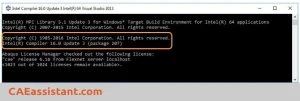
Now that you have linked Abaqus and Fortran successfully, it is time to learn the basics of Fortran by reading this blog: Abaqus Fortran
How can we learn to write an Abaqus subroutine correctly?
Fortran is a powerful programming language widely used in scientific and engineering applications, including Abaqus. In Abaqus, Fortran subroutines allow users to customize and extend the software’s capabilities. These subroutines can be used to define material models, boundary conditions, loads, and output requests. Fortran’s numerical precision and efficiency make it well-suited for computationally intensive tasks in finite element analysis. Additionally, Abaqus provides a comprehensive set of user subroutines that enable users to implement complex algorithms, integrate user-defined equations, and access internal data structures. With Fortran’s versatility and Abaqus’s extensive support, users can tailor the software to meet their specific modeling and simulation requirements.
If you’re ready to go beyond linking and truly start implementing your own Abaqus subroutine, our step-by-step guide on how to start writing Abaqus subroutines will help you expand your simulation capabilities and write your first custom code with confidence.
Here below, I have listed some main Abaqus subroutines that you may encounter when using Abaqus at an advanced level as a graduate student or researcher. Good news for you! You can learn each subroutine you want by clicking on that. These are some of the tutorial packages of CAE Assistant team.





 English
  Korean
  Chinese
7 Responses
This is one awesome blog post. Really thank you! Keep writing.
Very informative blog article. Much thanks again. Fantastic. Darbie Wake Barnum
Really interesting and for a newbie, I actually understood it! Leeanne Malvin Bounds
Hi, I live in Australia, but this is a topic dear to my heart because of an online project I am working on. I was wondering if this will actually be televised / recorded so I can listen in please? Thanks! Pet Orbadiah Gipps
I do consider all of the ideas you have introduced in your post. They are really convincing and will definitely work. Nonetheless, the posts are too quick for newbies. Could you please extend them a little from subsequent time? Thanks for the post. Jerrine Spense Radford
After exploring a number of the articles on your website, I truly like your technique of writing a blog. I book marked it to my bookmark webpage list and will be checking back in the near future. Please check out my web site as well and tell me your opinion. Page Claudio Hayden